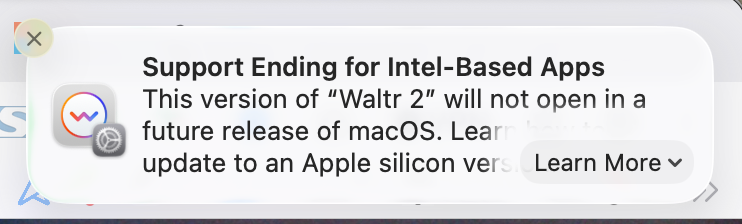
Do you keep seeing this notification pop-up on your MacBook? Do you know what it means? Do you know what to do about it? If not read on to find out.
What is Rosetta and why is it needed?
Rosetta 2* is Apple’s translation technology that lets Intel Mac applications run on Apple Silicon Macs — Macs with the M1, M2, M3, M4, M5 etc. chips.
Apple changed the processor architecture of the Mac in 2020:
- Before 2020: Macs used Intel processors, based on the x86-64 instruction set.
- Since 2020: Macs use Apple’s own ARM-based Apple Silicon processors.
The problem is that software compiled for Intel expects to run Intel machine instructions, which an M-series processor doesn’t natively understand.
Rosetta 2 acts as a translator:
Intel application
       ↓
 x86-64 instructions
       ↓
    Rosetta 2
       ↓
ARM64 instructions
       ↓
 Apple Silicon CPU
In many cases the translation is remarkably good — you simply launch an old Intel application and macOS handles the translation without you needing to do anything.
Rosetta was never meant to be permanent. Its job was to give the Mac software ecosystem time to catch up with Apple’s move to its own processors. Six years after the first M1 Mac, Apple evidently thinks that job is largely done.
What next for Rosetta?
Apple has announced that it is retiring Rosetta but it is not disappearing with macOS 27. It remains fully available throughout macOS 27. The real sunset is macOS 28.
| macOS | Release | Rosetta 2 |
|---|---|---|
| macOS 26 Tahoe | 2025 | ✅ Full support |
| macOS 27 Golden Gate | 2026 | ✅ Full support — final version |
| macOS 28 | 2027 | ⚠️ Restricted support only |
From macOS 28, Rosetta functionality will be restricted to certain older, unmaintained games that depend on Intel-only frameworks.
How to plan for life after Rosetta
Now is the time to start planning for the removal of Rosetta.
Apple’s current guidance is that if an application reports itself as Application (Intel), users should look for a Universal or Apple Silicon version.
The problem isn’t necessarily the applications themselves, either. Apple specifically warns about:
- plug-ins
- extensions
- add-ons
- background components
- updaters
- other components used by applications
An application might appear to work perfectly because it’s Universal while one of its plug-ins is still Intel-only.
Finding Rosetta Apps
There are a few good ways to identify which apps on your Mac still depend on Rosetta 2 and therefore may need replacing with Apple Silicon-native versions.
Easiest built-in method
To find applications that are Intel based you can do the following:
- Open System Information
- Hold Option and click the Apple menu
- Choose System Information
- In the sidebar go to:
- Software → Applications
- Wait for the list to populate.
- Look at the Kind column:
- Apple Silicon = native
- Universal = supports both Intel and Apple Silicon
- Intel = runs via Rosetta
Any app marked Intel is using Rosetta.
You can sort by the Kind column to group them together.

Terminal command
If you are comfortable with using the Terminal then this command lists Intel-only apps in /Applications:
system_profiler SPApplicationsDataType | \
grep -B 7 "Kind: Intel"

Activity Monitor
One additional check is to look for Intel apps in running processes via Activity Monitor:
- Open Activity Monitor
- Enable the Kind column
- Anything showing Intel is actively using Rosetta right now.
That often reveals background utilities you forgot about.

Third-party tools
There are a number of third-party tools that can help you identify your Intel based app such as “Silicon” by iMazing.

You can also check the state of many apps by checking the website Does It ARM, but not ever app is recorded here.
Geraint in the comments also suggested Go64 which also works well so I have updated the post to include screenshots from that.


Also check these hidden Rosetta users
Even if the main app is native, these may still be Intel:
- audio plugins (VST/AU)
- printer/scanner drivers
- menu bar utilities
- VPN software
- old kernel/system extensions
- Dropbox/Google Drive helper tools
- Steam games
Before replacing apps
Check whether the developer already ships a native version. Many older Intel apps now have Apple Silicon updates that just need reinstalling.
A good compatibility database is:
Does It ARM compatibility database
Good luck!
* want to know why it is called Rosetta? It’s named after the Rosetta Stone, an ancient Egyptian tablet with an inscription translated into three languages.

The Go64 app from St Clair Soft (https://www.stclairsoft.com/Go64/index.html), makers of the excellent Default Folder utility, is another good way to keep track of Rosetta / Universal apps. In my case, the only item left is the Sonos app, which I suspect will never be fixed. Sometimes you have to specifically uninstall the old Intel version and install the Apple Silicon version (especially with apps installed via Homebrew) rather than relying on a simple upgrade. Good luck!
I’ve downloaded that and it’s really slick, so I will add to the post. Thanks!
That’s a really helpful explanation. I was completely lost when I first saw those notifications, glad you broke it down so clearly.