Late last year I wrote a script that took my Foursquare check-ins and created an entry for each of them in the Day One app. This continues to work well and you can read more about it here:
I felt that there was more that could be done with the information held in Foursquare and set about extracting it.
Into the Dataverse
I decided that the best way to get the data in a usable form would be to extract it and store it in a database, choosing SQLite as the repository (Read here why I choose which format to store data in my projects).
I didn’t want to pull down and store every single check-in, there didn’t seem to be any point in that. Instead just some summary information. Foursquare holds the following information on my check-ins:
- Venue name
- Location (city, state, country)
- Longitude & latitude
- Date of visit
- URL to the Foursquare location page.
I took this basic data and added a count for the number of visits. This means that there is just one entry for every venue visited which contains location information along with the date of the last visit and the number of times I have visited it.
This gave me a table like this:
CREATE TABLE foursquare (
                        `id` INTEGER PRIMARY KEY AUTOINCREMENT,
                        `name` TEXT NOT NULL,
                        `venueId` TEXT NOT NULL,
                        `dateVisited` TEXT,
                        `city` TEXT,
                        `state` TEXT,
                        `country` TEXT,
                        `long` TEXT,
                        `lat` TEXT,
                        `count` INTEGER,
                        `url` TEXT
                    )
I used the script that I wrote to extract for the Foursquare to Day One and updated it to store the information in the database.
Making Sense of the Data
Now I had the data in a format I could use and locally on my machine I had to decide what to do with it. Initially I wrote some queries to show me top venue visited and visits by year but it was a bit dull.
I’m aware that some people aren’t fans of vibe coding but having spent 40 years hand crafting code I’m happy to let someone else do the heavy lifting. I used the Ai (Claude Sonnet 4.6) in Visual Studio Code to write a script to create a static statistics page. This is the prompt I used:
Create a web page that reads the contents of the cache.sqlite database and outputs a nicely formatted webpage with interesting statistics from the check-ins held in the database.
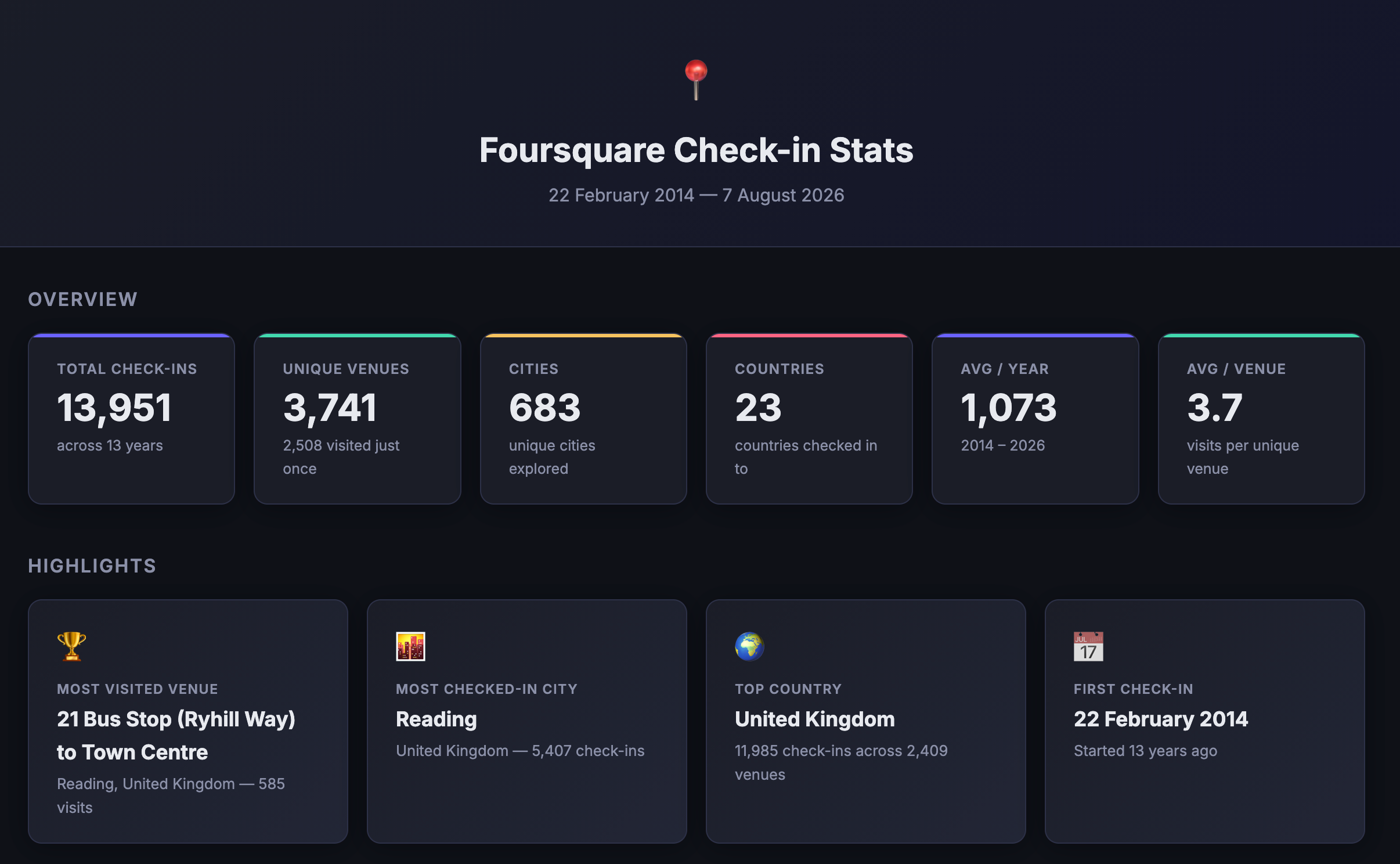
You can see what a complete stats page looks like here.
Using the Scripts
There are two scripts for the project which can be run from the command line:
- f2db.php – to extract the data from Foursquare and store it in a database
- generate_stats.php – creates a static html file of stats.
When you first run the f2db.php script it will create a new SQLite database called cache.sqlite and in this it will create a single table called foursquare with the format shown above.
It is important to note that this table DOES NOT contain every check in but one row for every venue visited. As the script goes through all the entries if a venue is visited more than once then the count is incremented by one and the dateVisited set to the date of the last visit.
To populate the database, from the command line, run the script:
php f2db.php
When running you will see output similar to this:

If you stop the process at any time (or it fails), then when you run the script again it will restart where it left off. If you don’t want this to happen, delete the progress.json file in the same folder as the script.
Statistics Generation
Once you have a populated database you can either just run your own queries against it or, if you would prefer a more formatted page with statistics you have two options:
- if you would like a static html page that you can host somewhere or just look at locally run
php generate_stats.phpand it will create a single html file calledstats.htmlwhich you can open in your browser - if you are likely to be updating the database frequently you can host
stats.phpon your webserver and in the same place as the cache.sqlite to a live page of stats.
Regardless of which option you choose you will see exactly the same output. See here for an example.
I was impressed with both the range of stats that Ai chose and the formatting of the page which looks pretty slick. It’s a great way to get a snapshot of my check-ins.
As ever you can find the code for this project on my GitHub page.