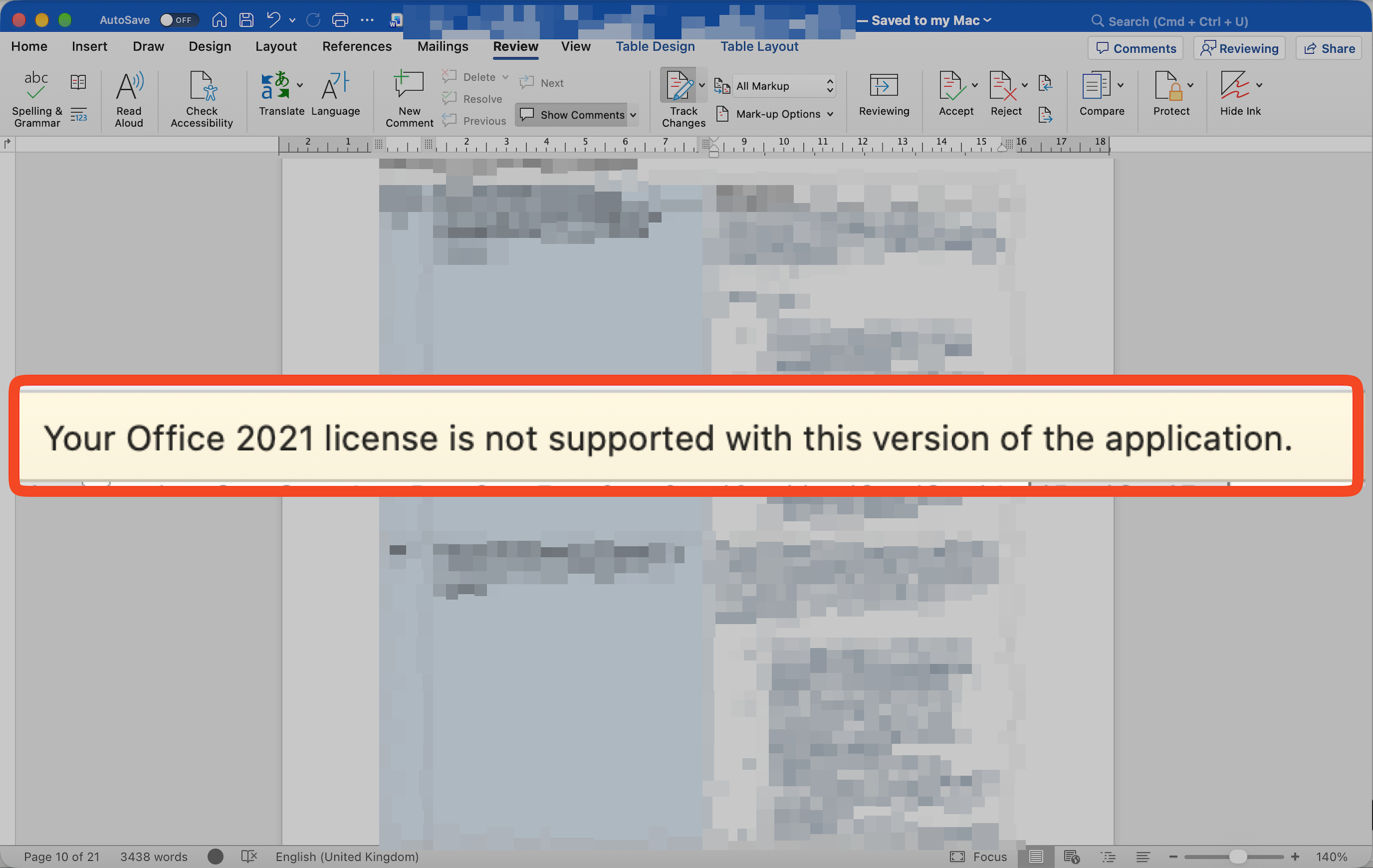
Your Office 2021 license is not supported with this version of the application.
Are you seeing this message when you open Microsoft Office? If so you are not alone—this message started popping up for users following a Microsoft update.
What Is Happening?
Office 2021 (or Office Home & Business / Home & Student 2021) is a one-time, standalone perpetual license. However, the background updater (Microsoft AutoUpdate) automatically installed build 16.114.1.
This specific release package introduced a restriction where the app binaries no longer recognise perpetual 2021 license keys, dropping the suite into “Read-Only / Reduced Functionality” mode and pushing a prompt to subscribe to Microsoft 365.
The question is, is this an aggressive sales push to force everyone onto a monthly subscription or it is a bug in the build? I know where I’d put my money if I had to bet…
How to Fix It (Without Paying for Microsoft 365)
To fix this, you need to remove your current Office apps, reinstall the last known working release (Version 16.113.4 or 16.114), and turn off automatic updates so Microsoft doesn’t push the bad update again.
Step 1: Remove the Over-Updated Apps
- Close Word, Excel, PowerPoint, and Outlook.
- Open Finder > Applications.
- Select Microsoft Word, Excel, PowerPoint, and Outlook, and move them to the Trash. (Don’t worry—this only deletes the program files, not your documents or personal settings).
Step 2: Download and Reinstall a Supported Build
Download and run the installer for a build released just prior to the problematic update:
- Recommended Working Build: Version 16.113.4 (or 16.114).
- You can download the official standalone package from Microsoft’s Office for Mac Update History page by selecting the 16.113.4 suite package.
Step 3: Turn Off AutoUpdate Immediately
To stop the apps being updated make your fist task to turn off the auto updater:
- Open any of the apps (e.g., Word).
- Go to the top menu bar and click Help > Check for Updates.
- Uncheck “Automatically keep Microsoft apps up to date”.
- Close and reopen the app and sign back into the Microsoft account associated with your 2021 license to activate.
Once rolled back to the stable build, your 2021 perpetual license will function normally again without requiring a subscription.
What Next?
Well, that depends on whether this is a bug or a sales tactic. If it is the latter then we are on version 16.113.4 forever as Microsoft are not getting my subscription. Of course, there’s always Craft Apps…