WARNING! Make a copy of your database before trying any of this!
A while back I found an online course called SQL for Genealogy which taught you how to extract and manipulate your family history data using SQL queries. I was, and still am, using a program called MacFamilyTree to record my research but that doesn’t have a published schema for its database so I transferred all data via GEDCOM to Roots Magic and used that instead. You can read more about that here in the post below but I wanted to revisit getting the data directly from MacFamilyTree (MFT). Why? Simply because not all data is transferred via GEDCOM. In my case I wanted a simple list of to do items recorded.
Where’s my Data?
The first thing that you need to do is find the database that holds your data. You can get this from one of two places. The first is the live database that is loaded by MacFamilyTree and you work against. For the latest version this is held here:
~/Library/Containers/com.syniumsoftware.macfamilytree11/Data/Documents/The other place, if you have backups enabled, is in your iCloud drive, the location for mine is here:
/Users/neilthompson/Library/Mobile\ Documents/iCloud~com~syniumsoftware~familytree11/Documents/BackupsIn both cases look for a file that is called <The name of your MFT tree>.mftpkg and TAKE A COPY of this and put it somewhere else.
The *.mftpkg file isn’t a file at all but a package containing, amongst other things, the database and a resources folder of all the media that you have uploaded to MFT.
Right mouse click on the *.mftpkg file and select Show Package Contents. This will open out the contents of the package for you to inspect. Here will be a file called database which you can copy out of the package to somewhere you can access it.
Exploring the Data
The database is in SQLite format so the first thing I did was exported the schema to a file:
sqlite3 your_database.db ".schema" > schema.sql
Then I got AI to convert this to DBML format before using dbdiagram.io to create my an Entity Relationship Diagram.

The first thing you notice on the ERD is that massive table in the bottom right. This is the ZBASEOBJECT table which, basically, holds everything.
This is a classic Apple Core Data SQLite schema. In Core Data apps like MacFamilyTree, Apple uses a pattern called Single Table Inheritance (or shared table mapping) where multiple different entities (Persons, Families, To-Dos, Sources, etc.) are all stored inside the single ZBASEOBJECT table, distinguished by their internal entity type codes (Z_ENT) and linked together via foreign keys or intermediate relationship tables.
Sample Queries
I began by running some simple queries to allow me to validate that I was getting what I expected from the database. For this I used the excellent, and free, DB Browser for SQLite.
Everyone in your database
The following produces a list of every person in your database along with their date of birth and death, where available.
SELECT
    TRIM(
        COALESCE(bo.ZLASTNAME, '') ||
        CASE WHEN bo.ZLASTNAME IS NOT NULL AND (bo.ZFIRSTNAME IS NOT NULL OR bo.ZNAMEMIDDLE IS NOT NULL) THEN ', ' ELSE '' END ||
        COALESCE(bo.ZFIRSTNAME, '') ||
        CASE WHEN bo.ZFIRSTNAME IS NOT NULL AND bo.ZNAMEMIDDLE IS NOT NULL THEN ' ' ELSE '' END ||
        COALESCE(bo.ZNAMEMIDDLE, '')
    ) AS 'Name',
    bo.ZCACHED_BIRTHDATE AS 'Birth Date',
    bo.ZCACHED_DEATHDATE AS 'Death Date'
FROM ZBASEOBJECT bo
WHERE bo.ZCACHED_FULLNAME IS NOT NULL
   OR bo.ZFIRSTNAME IS NOT NULL
   OR bo.ZLASTNAME IS NOT NULL
ORDER BY
    bo.ZLASTNAME ASC,
    bo.ZFIRSTNAME ASC,
    bo.ZNAMEMIDDLE ASC;
Surname Frequency
Another simple but useful query is to list out all the surnames in the database along with the number of times they occur.
SELECT bo.ZLASTNAME, COUNT(*)
FROM ZBASEOBJECT bo
WHERE bo.ZLASTNAME IS NOT NULL
GROUP BY
    bo.ZLASTNAME
ORDER BY
    COUNT(*) DESC;
Births by Century
This is a fun one as it includes in the output a crude bar chart of the results allowing you to visualise the number of births by century. Obviously, you could do with with any meaningful date where the year appears as the last four digits.
WITH ExtractedCenturies AS (
    SELECT
        CAST((CAST(SUBSTR(bo.ZCACHED_BIRTHDATE, -4) AS INTEGER) - 1) / 100 + 1 AS TEXT) AS Century,
        COUNT(*) AS total_count
    FROM ZBASEOBJECT bo
    WHERE bo.ZCACHED_BIRTHDATE IS NOT NULL
    GROUP BY 1
)
SELECT
    Century,
    total_count,
    replace(printf('%*s', total_count, ''), ' ', '*') AS Asterisks
FROM ExtractedCenturies
ORDER BY 1;

A List of Things To Do
At the beginning of this post I said that one of the reasons I wanted to query the MFT database directly was because I wanted a list of To Dos that I have created. MFT can create a list of To Dos but, oddly, it doesn’t have the name of the person it relates to, which isn’t much use as far as I was concerned. Therefore, the only way to achieve what I wanted was to extract the data directly from the database.
To Do’s are held in the ZBASEOBJECT table but information, such as the priority of the To Do are held in a separate, ZCONCLUSIONTYPE, table. There are three pieces of useful information in this table:
- Type (both MFT and user created)
- Priority (High, Medium, Low)
- Status (Done, Not Done)
Additionally, to get the name of the individual, we need to join ZBASEOBJECT back to itself to find the related Person record. Person records in MFT store their names in columns like ZCACHED_FULLNAME, ZFIRSTNAME, and ZLASTNAME.
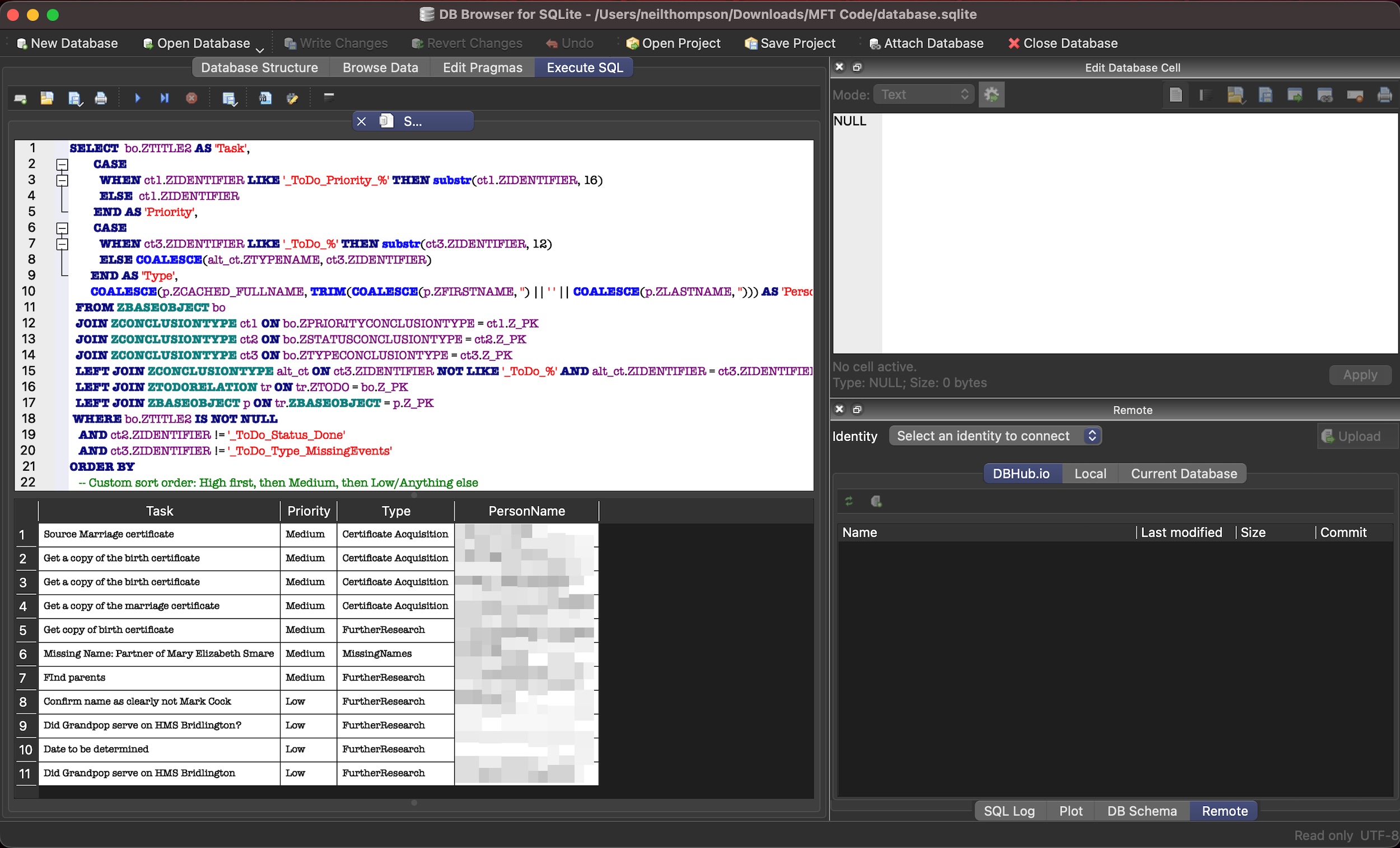
This gives us the following SQL which lists all To Dos that are not done and are not of the “Missing Event” type.
SELECT  bo.ZTITLE2 AS 'Task',
        CASE
          WHEN ct1.ZIDENTIFIER LIKE '_ToDo_Priority_%' THEN substr(ct1.ZIDENTIFIER, 16)
          ELSE  ct1.ZIDENTIFIER
        END AS 'Priority',
        CASE
          WHEN ct3.ZIDENTIFIER LIKE '_ToDo_%' THEN substr(ct3.ZIDENTIFIER, 12)
          ELSE COALESCE(alt_ct.ZTYPENAME, ct3.ZIDENTIFIER)
       END AS 'Type',
       COALESCE(p.ZCACHED_FULLNAME, TRIM(COALESCE(p.ZFIRSTNAME, '') || ' ' || COALESCE(p.ZLASTNAME, ''))) AS 'PersonName'
  FROM ZBASEOBJECT bo
  JOIN ZCONCLUSIONTYPE ct1 ON bo.ZPRIORITYCONCLUSIONTYPE = ct1.Z_PK
  JOIN ZCONCLUSIONTYPE ct2 ON bo.ZSTATUSCONCLUSIONTYPE = ct2.Z_PK
  JOIN ZCONCLUSIONTYPE ct3 ON bo.ZTYPECONCLUSIONTYPE = ct3.Z_PK
  LEFT JOIN ZCONCLUSIONTYPE alt_ct ON ct3.ZIDENTIFIER NOT LIKE '_ToDo_%' AND alt_ct.ZIDENTIFIER = ct3.ZIDENTIFIER
  LEFT JOIN ZTODORELATION tr ON tr.ZTODO = bo.Z_PK
  LEFT JOIN ZBASEOBJECT p ON tr.ZBASEOBJECT = p.Z_PK
 WHERE bo.ZTITLE2 IS NOT NULL
   AND ct2.ZIDENTIFIER != '_ToDo_Status_Done'
   AND ct3.ZIDENTIFIER != '_ToDo_Type_MissingEvents'
ORDER BY
   -- Custom sort order: High first, then Medium, then Low/Anything else
   CASE
     WHEN ct1.ZIDENTIFIER LIKE '%High' THEN 1
     WHEN ct1.ZIDENTIFIER LIKE '%Medium' THEN 2
     WHEN ct1.ZIDENTIFIER LIKE '%Low' THEN 3
     ELSE 4
   END ASC,
   bo.ZCREATIONDATE DESC
There’s an example of the output from this at the top of the post.
Exporting the Data to Evernote
Having this list was fine but I wanted to do more with it. For my research notes I use Evernote to record details and this seemed like an obvious place to hold the To Do list. Evernote can take in Markdown text so I decided that this was probably the best way of getting a nicely formatted table. I suppose that it might have been possible to spit out Markdown from SQL but I decided that it would be easier to just take the output from the SQL and have Python read it and convert it which is exactly what the following script does.
import sqlite3

# Path to your MacFamilyTree database (update if needed)
DB_PATH = "/Users/neilthompson/Downloads/database.sqlite"

# Your finalized SQL query
QUERY = """
SELECT  bo.ZTITLE2 AS 'Task',
        CASE
          WHEN ct1.ZIDENTIFIER LIKE '_ToDo_Priority_%' THEN substr(ct1.ZIDENTIFIER, 16)
          ELSE  ct1.ZIDENTIFIER
        END AS 'Priority',
        CASE
          WHEN ct3.ZIDENTIFIER LIKE '_ToDo_%' THEN substr(ct3.ZIDENTIFIER, 12)
          ELSE COALESCE(alt_ct.ZTYPENAME, ct3.ZIDENTIFIER)
       END AS 'Type',
       COALESCE(p.ZCACHED_FULLNAME, TRIM(COALESCE(p.ZFIRSTNAME, '') || ' ' || COALESCE(p.ZLASTNAME, ''))) AS 'PersonName'
  FROM ZBASEOBJECT bo
  JOIN ZCONCLUSIONTYPE ct1 ON bo.ZPRIORITYCONCLUSIONTYPE = ct1.Z_PK
  JOIN ZCONCLUSIONTYPE ct2 ON bo.ZSTATUSCONCLUSIONTYPE = ct2.Z_PK
  JOIN ZCONCLUSIONTYPE ct3 ON bo.ZTYPECONCLUSIONTYPE = ct3.Z_PK
  LEFT JOIN ZCONCLUSIONTYPE alt_ct ON ct3.ZIDENTIFIER NOT LIKE '_ToDo_%' AND alt_ct.ZIDENTIFIER = ct3.ZIDENTIFIER
  LEFT JOIN ZTODORELATION tr ON tr.ZTODO = bo.Z_PK
  LEFT JOIN ZBASEOBJECT p ON tr.ZBASEOBJECT = p.Z_PK
 WHERE bo.ZTITLE2 IS NOT NULL
   AND ct2.ZIDENTIFIER != '_ToDo_Status_Done'
   AND ct3.ZIDENTIFIER != '_ToDo_Type_MissingEvents'
ORDER BY
   -- Custom sort order: High first, then Medium, then Low/Anything else
   CASE
     WHEN ct1.ZIDENTIFIER LIKE '%High' THEN 1
     WHEN ct1.ZIDENTIFIER LIKE '%Medium' THEN 2
     WHEN ct1.ZIDENTIFIER LIKE '%Low' THEN 3
     ELSE 4
   END ASC,
   bo.ZCREATIONDATE DESC"""


def main():
  try:
    conn = sqlite3.connect(DB_PATH)
    cursor = conn.cursor()
    cursor.execute(QUERY)
    rows = cursor.fetchall()
    conn.close()

    if not rows:
      print("No open to-dos found!")
      return

    # Print Markdown table headers
    print("| Person | Task | Type | Priority |")
    print("| :--- | :--- | :--- | :--- |")

    # Print each row as a table entry
    for row in rows:
      task, priority, task_type, person_name = row
      person_str = person_name if person_name else ""

      print(f"| {person_str} | {task} | {task_type} | {priority} |")

  except sqlite3.Error as e:
    print(f"Database error: {e}")
  except Exception as e:
    print(f"An error occurred: {e}")


if __name__ == "__main__":
  main()
To run the script go to the command line and enter the following, assuming that you have saved the above script as todos.py:
python3 todos.pyThat will output test similar to the following:

Copying and pasting this text into Evernote gives you a nicely formatted table like this:

Conclusions
While I would prefer it if I didn’t have to crack open the SQL to get things formatted in a way I would like I also have to admit that it is fun! This has been an interesting little project and I can see me coming back in future to get better access to my data.