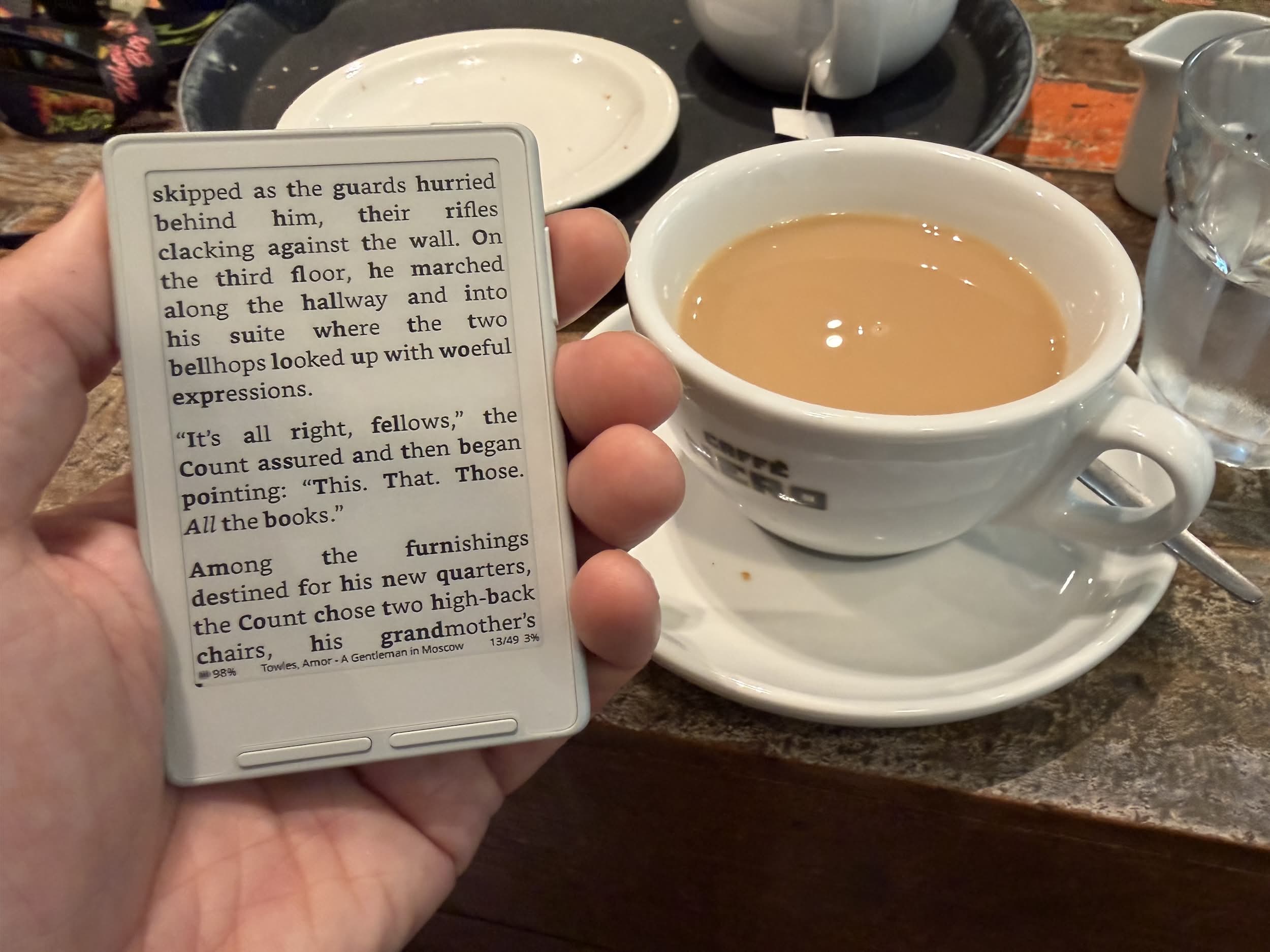
I’ve made no secret of my love for the Xteink X4, the tiny ereader that you can take with you wherever you go (and I do). So why did I also buy the X4’s little sibling? Read on to find out…
What is the X3?
Xteink is a Chinese company that manufactures and sells small, basic and, importantly, cheap e-readers (they also sell a Tong card but not internationally).
They started with the X4, which I have written about a number of times before, and quickly followed it up with the X3.
Major differences are:
- The X3 is smaller, it’s close to the size of a credit card
- Has a higher definition screen
- Includes a gyroscope for page turning
- Has NFC for, well, we’ll discuss that later
- Less buttons
- Uses a pogo pin for charging
- Better positioning of magnets for placement on the back of phones.
The stock firmware is the same and, crucially, if you buy what is marketed as the “Developer Edition” direct from Xteink or Amazon (only in the US as I write this) you can reflash to a different firmware such as the excellent Crosspoint or one of the many forks.
The X3 in use
I bought my X3 directly from Xteink so I was able to flash Crosspoint onto it without having to unlock it first. This meant that the user interface was familiar and easy to use as that’s what I also have on my X4.
The most obvious differences, other than the size, is the pogo pin connector on the back and less buttons. The pogo pin connector is slightly annoying when I have been trying to move everything over to USB C. I do have an adaptor which I can use but it is one more thing to try and remember to bring with me. There has been quite a lot of pushback on the Xteink subreddit about the connector so hopefully they will take that onboard for future models.
The X3 feels really nice in the hand and my thumb falls naturally over the right hand side button. Both the number of buttons and the layout is different between the X4 and the X3. Consequently I find myself pressing a button expecting one thing and getting something else entirely but that’s muscle memory for you!
A concern I had about the X3 was its size – would it be so small that I was forever pressing to turn the page? Short answer is no, although maybe I am but I just don’t realise it as I am so engrossed in my book. That I’m not noticing suggests that this isn’t an issue for me at all.
One of the main drivers for me getting an X3 was that it was possible to snap it to the back of your phone, making it (even) more portable. While this had been possible in theory with the X4, in practice it really didn’t work with very many phones, and those it did work with, the placement of the device was often off-centre. The X3, however, seems to be compatible with a much wider range of devices – it certainly works well with my iPhone 17 Pro. It is held reasonably well to the phone and is placed perfectly on the back. However, it does move around a bit because the magnets are all at the top, so the bottom does move (see images). While my device does have a screen protector I do worry about having it squeezed into my pocket with my phone so I may put it in a case too.
Why buy an X3?
Let’s start with the easy one. If you don’t already have an X4 and are looking for a portable e-reader that snaps to the back of your phone then the X3 is for you.
If you already an X4 then it is a more difficult decision. I love my X4 and still use it daily but out and about having the X3 on the back of your phone means it is a much better travel companion than the X4 unless you have a bag to stick it in. Yes, the X4 will go into your jeans pocket but, for me, it is slightly less comfortable.
Synchronising between X3 and X4
If you have both the X3 and the X4 then one thing that you are going to want to do is synchronise your reading progress between then two devices. Fortunately, this is possible using Koreader sync a fairly mature sync server solution. How to get this setup is described in the Crosspoint documentation here and it recommends issuing this from the command line:
USERNAME="user"
PASSWORD="pass"
PASSWORD_MD5="$(printf '%s' "$PASSWORD" | openssl md5 | awk '{print $2}')"

curl -i "https://sync.koreader.rocks/users/create" \
  -H "Accept: application/vnd.koreader.v1+json" \
  -H "Content-Type: application/json" \
  --data "{\"username\":\"$USERNAME\",\"password\":\"$PASSWORD_MD5\"}"
I found that this didn’t work for me as the USERNAME filed on my Mac seemed to be hardcoded to the username of the Mac. This was simply solved by changing as follows:
KO_USERNAME="user"
PASSWORD="pass"
PASSWORD_MD5="$(printf '%s' "$PASSWORD" | openssl md5 | awk '{print $2}')"

curl -i "https://sync.koreader.rocks/users/create" \
  -H "Accept: application/vnd.koreader.v1+json" \
  -H "Content-Type: application/json" \
  --data "{\"username\":\"$KO_USERNAME\",\"password\":\"$PASSWORD_MD5\"}"
Once you have the account created you need to head to Settings, then System and finally KOReader Sync and enter your details onto both your devices. If you are uploading exactly the same file to both devices then select “Binary” as the document matching method. That done you can then push and pull your progress from the settings page of your current book you. In my experience the synchronisation has worked very well.
All in all this is a lovely little device.
Pictures of the X3


Great review! I noticed usb-c adapter in your photos; I am glad to know that one works (I almost lost the cable for my X3 and thought of ordering that as replacement).
One other technical difference is that X3 has a dedicated DS3231 clock chip (the X3 can keep accurate time when powered off, the X4 cannot)
I learned this working on my CrossPoint fork (hoping to get the device to pull my daily youtube summaries automatically).
I am also looking forward to the new X4 pro. I don’t love the touchscreen idea, but the backlight is a nice addition.
Will you still discuss the NFC later?
lol good catch! I’ll have to go back and work out exactly what you can do with it. Watch this space!