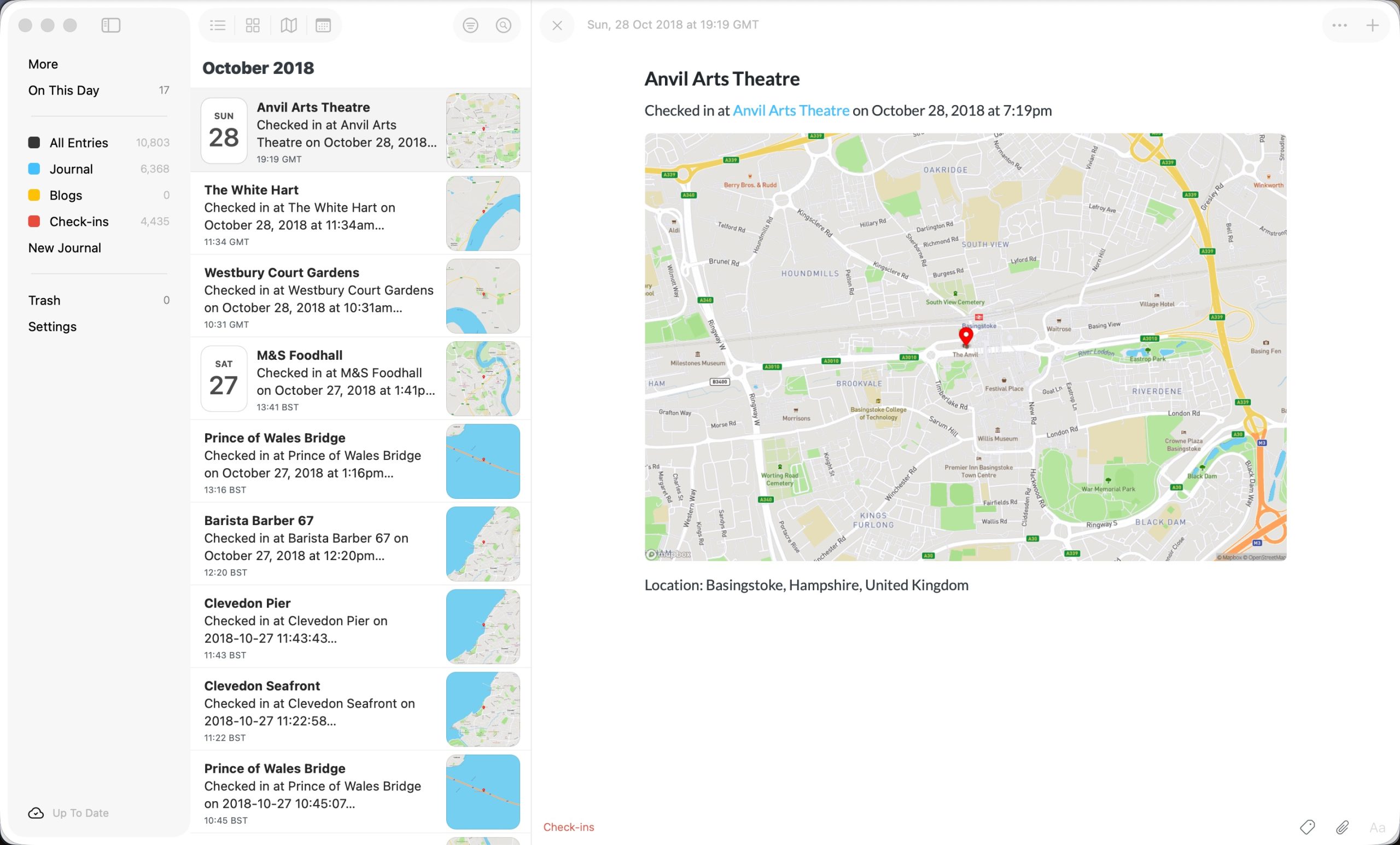
I’ve written about directly accessing the Day One database before along with a number of posts about getting data in from other services.
This week I came across a niggle with the Day One Mac app in that you cannot go directly to a specific dated post just by typing the date you want. You can scroll through the calendar and you can filter by year but that’s about it.

Rolling Your Own
As usual, I wasn’t willing to accept this deficiency, so I decided to build something to get around it.
The app consists of three files:
- a front-end HTML page with AJAX calls to…
- a back-end PHP script to query the database
- a config file.
The back-end PHP script
The first thing to do is to open the database and see if there are any entries for the date you are interested in. I have opened the database in read-only mode to stop any mishaps but you may prefer to make a copy of the database first and use that.
try {
    // Connect to SQLite database
    $db = new SQLite3($dbPath, SQLITE3_OPEN_READONLY);

    // Query for matching entry
    $result = $db->query('
        SELECT ZUUID FROM ZENTRY
        WHERE ZGREGORIANYEAR = ' . $year . '
        AND ZGREGORIANMONTH = ' . $month . '
        AND ZGREGORIANDAY = ' . $day . '
        AND ZJOURNAL = 1
        LIMIT 1
    ');
    $row = $result->fetchArray(SQLITE3_ASSOC);
    if ($row) {
        echo json_encode(['uuid' => $row['ZUUID']]);
    } else {
        http_response_code(404);
        echo json_encode(['error' => 'No entry found for that date.']);
    }
} catch (Exception $e) {
    http_response_code(500);
    echo json_encode(['error' => 'Database error: ' . $e->getMessage()]);
}
You will see that I have added AND ZJOURNAL = 1 to the query. This limits it to the journal with id 1 which, in my case, is my main journal with my diary entries rather than checkins or scrobbles. You will need to change this to reflect the journal you are interested in.
The front-end HTML page
The web page uses a AJAX call to the back end, passing the entered date, to determine whether there is an entry with the date specified. If there is the back end passes the unique identifier for that post but what to do with it?
The answer is to make use of Apple’s URL Schemes:
Apple’s URL schemes allow you to open specific apps or perform actions within them using custom URLs. For example, you can use music:// to open Apple Music or maps:// to launch Apple Maps.
In the case of Day One the URL scheme is dayone2://. Using this on its own will simply open the app but if you append view?entryId=<unique id> it will open the app at that entry.
Therefore, the code goes a little something like this:
        try {
          const date = new Date(dateInput);
          const year = date.getFullYear();
          const month = date.getMonth() + 1;
          const day = date.getDate();

          const response = await fetch("./api.php", {
            method: "POST",
            headers: { "Content-Type": "application/json" },
            body: JSON.stringify({ year, month, day }),
          });

          const data = await response.json();

          if (data.error) {
            showMessage(data.error, "error");
          } else if (data.uuid) {
            const url = `dayone2://view?entryId=${data.uuid}`;
            window.location.href = url;
            showMessage("Opening Day One...", "success");
          }
        } catch (error) {
          showMessage("An error occurred: " + error.message, "error");
        }
I know that a web app, albeit a small one, seems a bit of overkill but it solved a pain point for me. You can see the app in action in the short video below and download the code from here.